


- Your router is the one device every other device on your network depends on, and it is usually the one nobody has touched since it was installed.
- The two changes that matter most are the router’s own admin password and keeping its software updated. Both take about three minutes.
- If your router is old enough that the manufacturer no longer supports it, no setting will fix that. Replacing it is the fix.
- Several pieces of long-standing advice, including hiding your network name, do almost nothing.
- Governments in several countries have warned that unsupported home routers are being actively taken over and used in attacks on other people.
Most of the security advice aimed at ordinary people is about the things you use: your phone, your email, your passwords. Your router rarely gets a mention, which is odd, because everything you do online passes through it. This is a short, ordered list of what to change and roughly how long each step takes. You do not need to understand networking to do any of it.
First, one thing worth checking
Before changing any settings, find out how old your router is and whether the company that made it still supports it. Search for the model name, which is printed on a label on the device, plus the words “end of life” or “end of support”.
This matters more than any setting. When a manufacturer stops supporting a router, it stops issuing fixes, so any weakness found after that date stays open permanently. That is not a theoretical concern. The FBI, the US Cybersecurity and Infrastructure Security Agency and the UK’s National Cyber Security Centre have jointly urged action against attackers exploiting unsupported edge devices, routers among them, to get into networks and stay there. The FBI has separately named specific end-of-life home router models being actively exploited to install malware and rent out access.
If your router is unsupported, replacing it is the single most useful thing on this page. If it is still supported, carry on.
The fifteen minutes
You will need to reach your router’s settings. On most routers this means typing an address into a browser on a device connected to your network, and that address is usually printed on the same label as the model name. Some manufacturers now use a phone app instead.
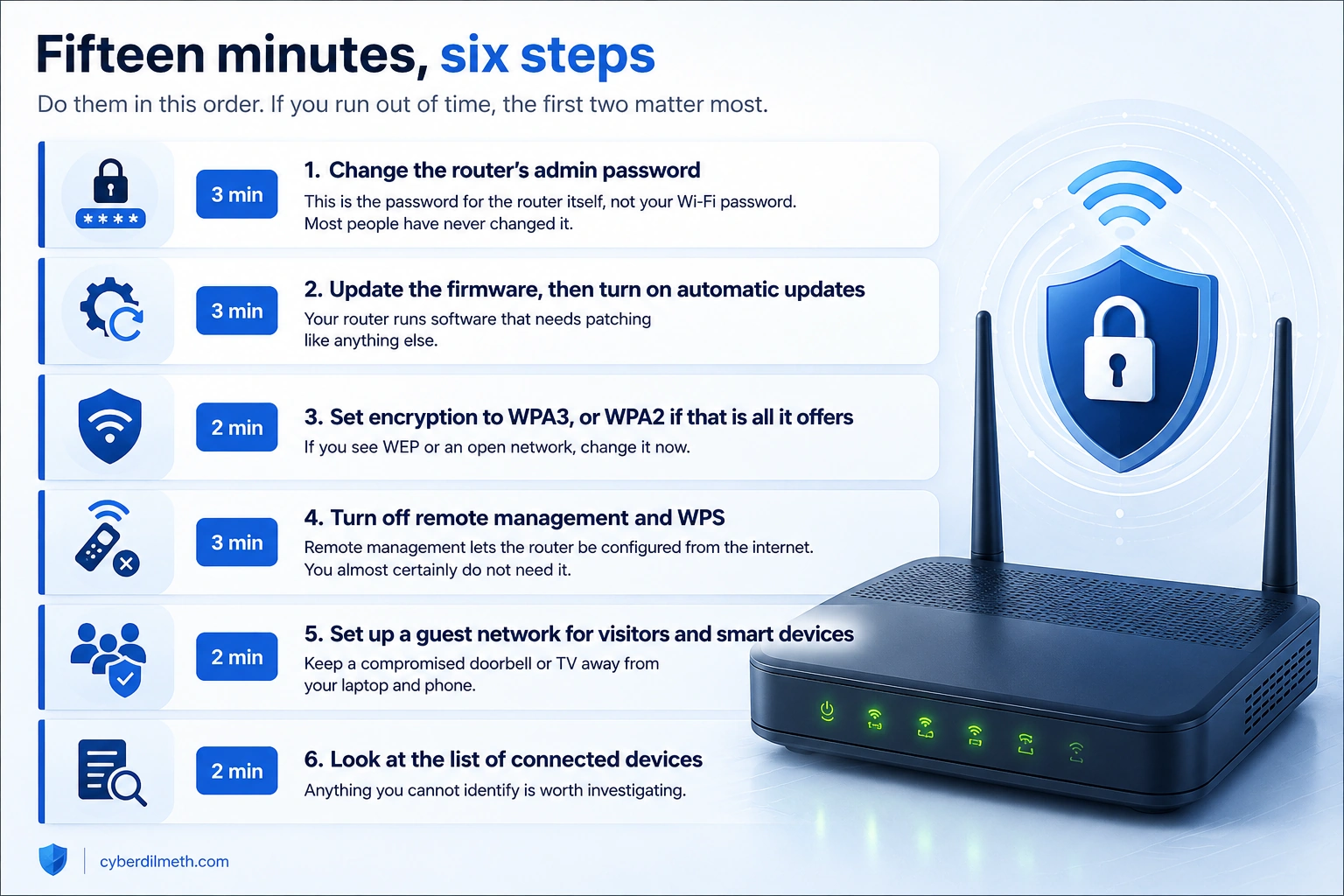
Change the router’s admin password. This is the one people miss, because it is a different password from the one you type to join the Wi-Fi. It is the password for configuring the router itself, and on a great many devices it is still whatever the manufacturer set at the factory, which is often printed in a manual anyone can download. Change it to something long and unique, and store it in a password manager rather than on the router itself.
Update the software and turn on automatic updates. Routers run software, that software has flaws, and manufacturers issue fixes. Look for a menu called firmware, update, or administration. If there is an option to install updates automatically, switch it on and you never have to think about this again.
Check the encryption setting. You want WPA3 if the router offers it, or WPA2 if it does not. If you see WEP, or an option like “open” or “no security”, change it immediately. Mixed modes that allow both WPA2 and WPA3 are fine and often necessary if you have older devices.
Turn off remote management and WPS. Remote management lets the router be configured from the internet rather than from your home. It is useful to a small number of people and to attackers. WPS is the button-press shortcut for connecting devices, and it has known weaknesses. Turn both off unless you know you need them.
Set up a guest network. Most routers can run a second network with its own password. Put visitors on it, and put smart devices such as televisions, doorbells, speakers and cameras on it too. If one of those devices is compromised, it is then sitting on a network with your other gadgets rather than with your laptop and phone.
Look at what is connected. Routers list the devices currently using the network. Read through it once. Names are often unhelpful, so count devices rather than trying to identify each one, and investigate if the number is higher than it should be.
What does not help as much as you think
Home networking advice has accumulated a lot of folklore, some of it repeated for twenty years. A few popular measures cost you convenience and buy almost nothing.
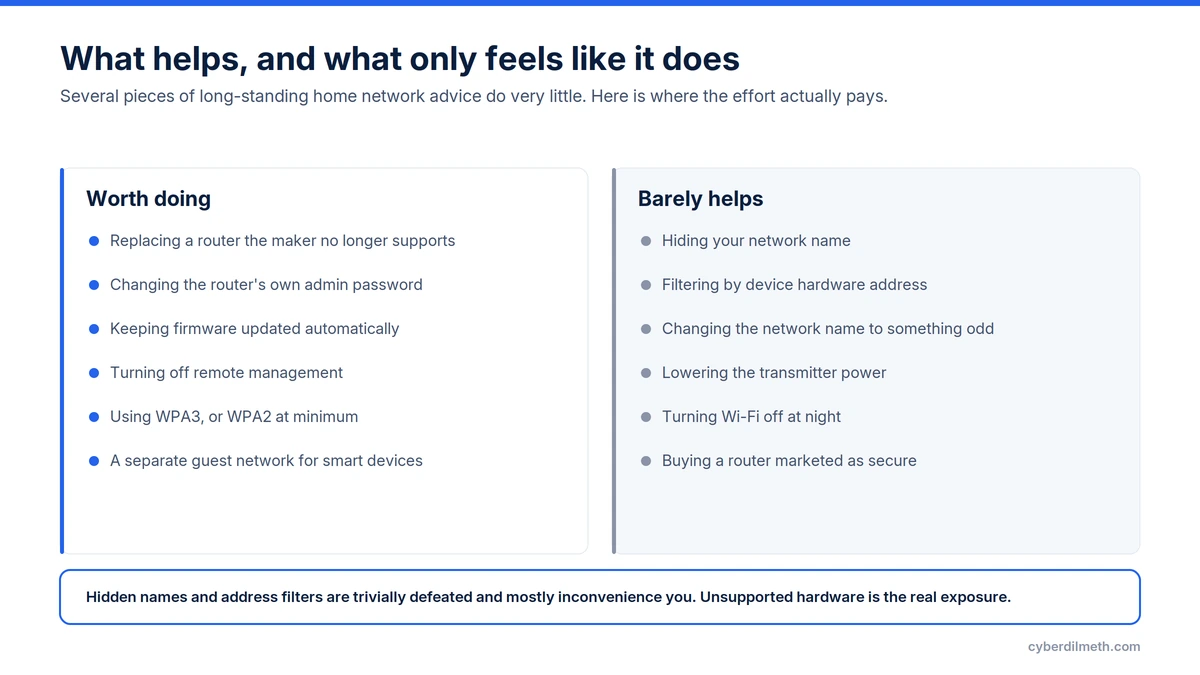
Hiding your network name does not hide the network. The name is still broadcast by every device connected to it, and freely available tools display hidden networks without difficulty. It mainly makes connecting new devices annoying.
Filtering by hardware address sounds like a guest list, but those addresses are announced openly and can be copied trivially. It stops nobody who is trying, and locks you out when you buy a new phone.
Turning the Wi-Fi off overnight is fine if you want to, but the attacks that matter to home users do not depend on someone being physically nearby at 2am.
A note on what this protects against
Worth being clear about the threat, because it is not the one people usually picture. The realistic risk to a home network is not a neighbour parked outside guessing your Wi-Fi password. It is an automated program scanning the entire internet for routers with known weaknesses or unchanged default passwords, taking them over at scale, and using them as a hiding place for attacks on other people.
That is why the admin password, the software updates and the age of the device dominate this list, and why the Wi-Fi password itself sits lower than you might expect. The steps above make your router uninteresting to that kind of automated sweep, which is the whole objective.
It also will not protect you from the things that most commonly go wrong for individuals. A secure router does nothing about a convincing scam email or a password reused across sites. Those need different tools and different habits.
- Find your router’s model name on its label and search for it alongside “end of support”. If it is unsupported, plan to replace it.
- Change the router’s admin password to something long and unique, and save it in a password manager.
- Install any available firmware update, then turn on automatic updates if the option exists.
- Set encryption to WPA3, or WPA2 if that is the highest available.
- Turn off remote management and WPS.
- Create a guest network and move visitors and smart home devices onto it.
- Read the connected devices list once, and check the count looks right.
- If your internet provider supplied the router, ask them whether it is still supported. They will not tell you unprompted.
If you do only one thing
Change the router’s admin password. It takes three minutes, it is the credential that lets someone reconfigure everything else, and it is the one most likely to still be set to whatever came in the box.
Last verified: 10 August 2026. Router menus vary considerably between manufacturers, so setting names may differ from those described here.